
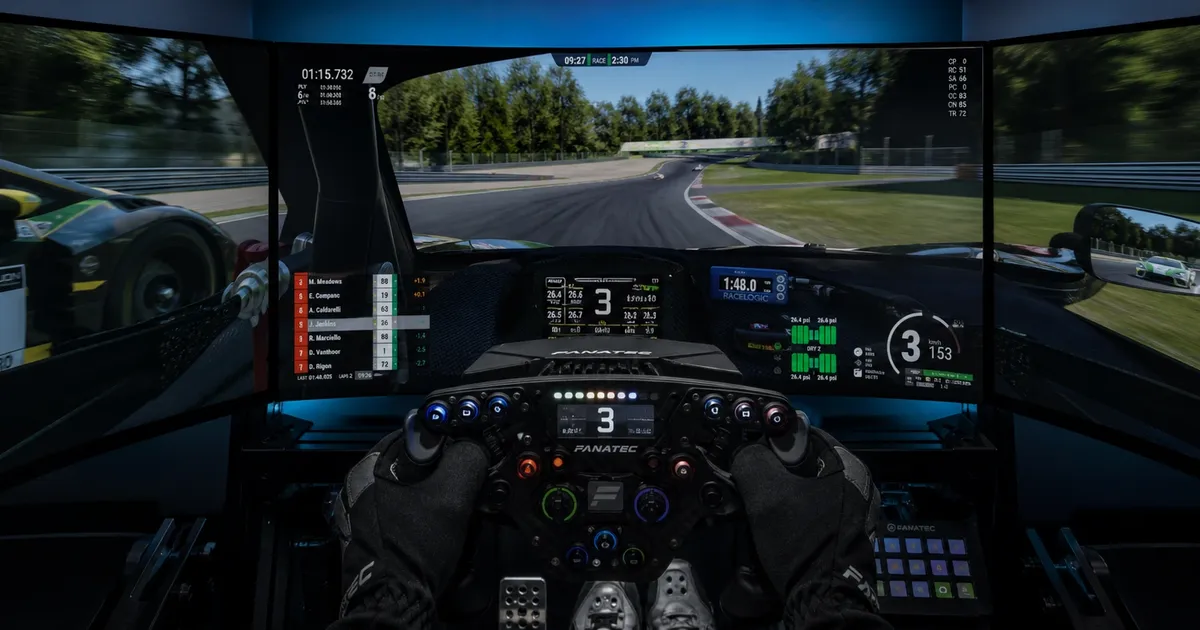

There's a moment every sim racer remembers — the first time they fire up Assetto Corsa or iRacing on a triple screen sim racing setup, glance left, and actually see the car alongside them without turning the in-game camera. The road peels away under the front wheels, the apex hovers in the corner of your eye, and suddenly the speedometer feels like it's lying — because everything looks faster.
That's not marketing fluff. That's peripheral vision doing what it was designed to do.
Here's the catch: building a triple screen sim racing setup looks intimidating, and honestly, it is — if you go in blind. Monitor sizes, refresh rates, GPU bottlenecks, bezel correction, FOV math, mounting angles, software quirks for every individual sim. Skip a single step and you'll either burn money or spend weeks wondering why your side screens look "off."
According to community surveys from 2025, around 14% of sim racers currently run triples — a steadily growing segment that sits between single-monitor purists and the VR crowd (roughly 33% of the hobby). The triple setup remains the gold standard for competitive online racers, endurance drivers, and league regulars precisely because it balances immersion with the practical visibility that wins races.
This guide walks you from zero to your first clean lap on a properly configured triple screen sim racing setup. We'll cover hardware, software, mounting, FOV, common mistakes the Reddit community sees every week, and budget tiers that actually make sense. Use the jump links below to navigate — this is a long one, and it's built to be referenced more than once.
Why a Triple Screen Sim Racing Setup Changes Everything
Before you spend a cent, you need to understand why triples exist — because the reasoning shapes every decision that follows.
Field of View — The Core Advantage
Field of view (FOV) is the angular slice of the world your eyes see at any one moment. In real driving, you have roughly 180° of horizontal vision. A single 27" or 32" monitor at typical sim racing distance gives you maybe 50–60°. That's tunnel vision.
A properly configured triple screen sim racing setup delivers around 160° of horizontal coverage — close enough to real peripheral vision that your brain stops compensating and starts trusting what it sees. You catch cars dive-bombing your inside line. You feel the kerbs on the exit. You spot a rival's nose appearing in your right-side mirror and in your physical right-side screen at the same time.
There's a meaningful distinction here, too: a single ultrawide monitor stretched to a wide FOV is not the same. The image gets distorted at the edges because pixels are spread thin across a flat panel. A triple screen setup uses physical angles to wrap the image around you geometrically, which is why side mirrors actually appear in your peripheral vision rather than miles off to the right.
Immersion and Speed Sensation
There's a psychological effect that's hard to convey until you've felt it: peripheral motion tricks your inner ear into reading speed more accurately. On a single screen, 200 km/h looks like a slightly faster version of 150 km/h. On triples, the same 200 km/h feels genuinely fast because the side screens are blurring past your peripheral vision the way real scenery does through a windshield.
Ultrawides give you a hint of this, but the horizontal coverage just isn't there. You need that physical angle on the side panels to get peripheral motion working.
As one r/simracing veteran put it in a widely upvoted thread: "I waited three years to pull the trigger on triples. Single biggest regret in my sim racing life — I should've done it on day one."
Competitive Advantage
For online racing, triples are a tangible edge. You see:
- Cars on your inside before they're fully alongside
- Yellow flags and incidents earlier in your peripheral view
- Apex reference points without rotating the in-game camera
- Drafting partners through your side glass naturally
A small caveat: triples won't make you faster automatically. Setup work, tire management, and racecraft still decide lap times. But on race-by-race visibility and situational awareness? Triples are a legitimate competitive tool, not just an immersion toy.
Triple Screen vs VR vs Ultrawide — Which Is Right for You?
In 2025, a sim racer has three real options for immersive racing. Picking the wrong one wastes money. Here's how they actually stack up.

Triple Screen vs VR
| Criterion | Triple Screen | VR |
|---|---|---|
| Immersion | High (2D, wide FOV) | Maximum (true 3D depth) |
| Competitive clarity | ✅ Sharp visibility | ⚠️ Screen-door effect |
| Comfort (long sessions) | ✅ No fatigue | ❌ Heat, weight, sweat |
| GPU demand | High (3× pixels) | Very high (per-eye render) |
| Setup complexity | Medium | Low–Medium |
| Entry cost | $600–$1,500 (monitors + stand) | $500–$1,500 (headset |
| Motion sickness risk | None | Possible for new users |
| Access to peripherals | ✅ Full | ❌ Blind to button box |
| Telemetry / dashboards | ✅ Easy second screen | ❌ Tricky to integrate |
The verdict: VR delivers the most visceral, depth-aware immersion you can buy — perfect for casual hot-lapping and single-player sessions. Triples win for endurance racing, leagues, content creation, and any session longer than 90 minutes. Most professional and semi-pro sim racers stick with triples for pure pragmatism: predictable, stable, no headset cable to manage, no battery to charge, no fogged lenses.
Triple Screen vs Ultrawide
Ultrawides (typically 34"–49" at 21:9 or 32:9) are the popular compromise. Here's the honest comparison:
- Horizontal coverage: Ultrawide tops out around 100°. Triples deliver 160°.
- Seams: Ultrawides are seamless. Triples have bezels (mitigated by bezel correction).
- GPU load: Ultrawide is dramatically lighter (3.6MP vs 7.6MP for triple 1440p).
- Desk space: Ultrawides are far more compact.
- Cost: A premium 49" ultrawide can rival three mid-range monitors in price.
The verdict: Ultrawide is the smart compromise if space, GPU, or budget is tight. Triple is the right answer if you want maximum peripheral coverage and you're committed to a dedicated sim racing rig.
Decision Matrix — Quick Picks
| Profile | Best choice |
|---|---|
| Competitive online racer | Triple screens |
| Immersion-first casual driver | VR |
| Limited desk / small room | Ultrawide |
| Endurance / 2+ hour sessions | Triple screens |
| Budget under $400 for displays | Single 32" or used ultrawide |
| Streamer / content creator | Triple (looks great on camera) |
| Hybrid: rally + circuit + casual | VR for variety |
If you're still torn between VR vs triple screen sim racing, the deciding question is usually: how long are your average sessions? Under an hour, VR is hard to beat. Over an hour, triples almost always win on comfort.
Choosing the Right Screen Size for Your Triple Monitor Sim Racing Setup
Size is the first thing forums argue about, and the wrong choice here is the most expensive mistake you can make. Too small and you lose immersion. Too large and you can't physically fit them — or your neck pays the price.

The Physics of Triple Monitor Sizing
The math is straightforward: bigger monitors at side angles = more peripheral coverage, but require you to sit further back. At 65–80 cm viewing distance (standard sim racing seating), there's a sweet spot where pixel density, neck movement, and immersion balance out.
At 27" 1080p sitting 70 cm away, you'll see individual pixels. At 42" 4K, you'll be turning your head to track the side screens — defeating the point of peripheral vision.
27-inch Triple Setup
Pros: Cheap, light on GPU, compact, easy to find matched sets.
Cons: Visible pixelation at close viewing distance on 1080p; 1440p versions cost more.
Best for: Budget builds, smaller rooms, FPS-prioritized competitive racing.
32-inch Triple Setup (The Sweet Spot)
This is what most experienced sim racers — and roughly two-thirds of recommendations on r/simracing — converge on for the best screen size for triple monitor sim racing.
A 32" 1440p panel at 144–165 Hz hits the optimal balance: enough pixel density to be sharp at sim racing distance, enough physical size to fill peripheral vision, and a GPU load that mid-to-upper-range cards can handle.
Three 32" monitors angled at 35° measure roughly 115–130 cm wide depending on bezel and angle — fits most dedicated sim rigs without drama.
42–45-inch Triple Setup
Maximum immersion. The "cinema in your cockpit" effect.
Catches:
- Demands an RTX 4080 minimum, ideally a 4090
- Three 42"+ monitors plus angles need 150+ cm of width
- You'll need a heavy-duty stand; desk mounts won't cut it
- Pixel density at 1440p starts looking soft; 4K becomes the realistic target, which compounds the GPU problem
Best for: Dedicated sim rooms, enthusiasts with deep wallets, and serious streamers.
Curved vs Flat Monitors for Triple Setups
Curved panels on a triple setup is a debate that won't die. The community consensus:
- Lightly curved (1500R–1800R) center monitor: Fine, sometimes preferred
- Curved side monitors: Generally a bad idea — the curve fights the physical angle and creates visible distortion at the seams
- Best practice: Flat panels for the sides, flat or lightly curved for center
If you can't source a matched set of flat + curved, just go all flat. Consistency matters more than individual panel preference.
Size Summary
| Size | Resolution | FPS on RTX 4070 | Width (3 screens) | Best for |
|---|---|---|---|---|
| 27" | 1080p / 1440p | 160+ / 100+ | ~100–110 cm | Budget, small space |
| 32" | 1440p | 100–130 FPS | ~115–130 cm | Most users (optimal) |
| 42–45" | 1440p / 4K | 60–90 / 40–60 | ~150–180 cm | Enthusiasts, top-tier |
For most builders asking about the best size screen for sim racing on triples, 32" 1440p 144Hz IPS is the answer.
Panel Technology — IPS, VA, or OLED?
Panel type matters more in sim racing than in general gaming because of fast lateral motion.
IPS Panels
The default choice. Excellent color accuracy, wide viewing angles (critical when you're glancing at side screens at 35°+), and minimal ghosting on modern panels. Downsides are mild IPS glow in dark scenes and weaker contrast than VA.
Verdict: Default recommendation for triples.
VA Panels
Beautiful contrast and deeper blacks. The problem: VA panels still ghost noticeably during fast lateral motion — exactly what you do every corner in a sim. Even modern fast-VA panels can show smearing.
Verdict: Avoid for triple sim racing.
OLED Panels
Perfect blacks, instant response, stunning colors. Real drawbacks:
- Cost: three OLEDs runs $2,000–$5,000+
- Burn-in risk from static HUD elements (lap timer, position, tire temps) — this is a real issue, not theoretical
- Many OLEDs have aggressive auto-dimming that interferes with race visibility
Boostedmedia's LG UltraGear OLED triple test showed gorgeous results but flagged HUD burn-in as a long-term concern.
Verdict: Only for enthusiasts who'll vary their use or accept the burn-in tradeoff.
Refresh Rate — How Much Is Enough?
- 60 Hz: Insufficient. Visible stutter in fast corners.
- 144 Hz: Minimum acceptable target.
- 165–240 Hz: Noticeable smoothness improvement.
- 360 Hz+: Overkill — your GPU won't sustain that on triple 1440p anyway.
Aim for 144–165 Hz as the practical sweet spot.
GPU and Hardware Requirements for Triple Screen Sim Racing
This is where dreams die. Underestimate GPU requirements and your gorgeous new setup runs at 45 FPS.

Why Triple Monitors Are GPU-Intensive
Three monitors = three times the pixels. Triple 1440p totals roughly 7.68 megapixels per frame, versus 3.68 MP for a single 4K display. Even "lightweight" sims like rFactor 2 become demanding when rendered across three panels with high refresh rates.
GPU Recommendations by Resolution
| Configuration | Minimum | Recommended | Top tier |
|---|---|---|---|
| Triple 1080p | RTX 3070 / RX 6700 XT | RTX 4070 | RTX 4070 Ti |
| Triple 1440p | RTX 3080 / RX 6900 XT | RTX 4070 Super / RX 7900 XT | RTX 4080 |
| Triple 4K | RTX 4080 | RTX 4090 | RTX 4090 (~120Hz ceiling) |
Real-world: an RTX 3080 delivers 80–100 FPS in Assetto Corsa at triple 32" 1440p — playable, but not ideal for serious online racing where 1% lows matter.
CPU, RAM, and Storage
- CPU: Modern CPUs matter for physics and AI traffic. Aim for i5-13600K / Ryzen 7 7700X or better.
- RAM: 32GB minimum. 64GB if you run modded AC or heavy ACC sessions.
- Storage: NVMe SSD is mandatory. Long sim loads between sessions kill the mood fast.
Display Outputs and Cables
- You need three free video outputs on your GPU
- DisplayPort 1.4 or HDMI 2.1 for 1440p 144Hz+
- Check your GPU's spec sheet: some cards limit simultaneous active outputs
- Buy cables rated for the resolution/refresh you actually run — cheap HDMI cables will silently downgrade you
Mounting Your Triple Screen Sim Racing Setup
The physical setup is where most beginners underestimate the work.

Triple Monitor Stand vs Sim Rig Mount
- Desk stand: Cheaper, universal, but wobbles with 32"+ monitors and limits angle adjustment
- Rig-mounted stand: Attaches directly to your cockpit, fully adjustable, doesn't eat desk space — and crucially, moves with your seat so geometry stays consistent
Popular stand options include Next Level Racing, Trak Racer, Sim-Lab, and Rseat. Pick one rated for your monitor size and weight with margin to spare.
Monitor Angle — The Critical Variable
Standard side angle: 30–45° off the center monitor.
- 30° = wider total FOV, but more visible seam distortion
- 45° = sharper angle, less seam noise, slightly narrower coverage
- Start at 30–35°, fine-tune to taste
Bezel correction (covered in the software section) makes a meaningful angle possible. Without it, the math doesn't work and the seam looks broken regardless.
Height and Distance from Eyes
- Distance: 65–80 cm (25–31 inches) from the center monitor to your eyes
- Height: The vertical center of the screens should sit at eye level or slightly below
- Common rookie mistake: Monitors mounted too high — guarantees neck strain within an hour
Cable Management Tips
- Use velcro straps along the rig spine to keep cables from sagging
- Route power and video on opposite sides of the rig to reduce interference
- If your GPU and monitors support it, DisplayPort daisy-chain (MST) reduces cable count
- Leave service loops at the monitor so you can adjust angles without ripping plugs
Software Setup — Getting Triple Screens to Work Properly
This is where most Reddit help threads originate. Get this right and the hardware works as intended.

Windows Display Settings
- Right-click desktop → Display Settings
- Set mode to Extend, not Duplicate
- Drag monitor icons so the order matches the physical arrangement (left-center-right)
- Set identical resolution and refresh rate on all three
Bezel Correction — What It Is and Why It Matters
Bezel correction inserts virtual "gap" pixels so the image flows geometrically across screens — as if the bezels were transparent. Without it, a car crossing the seam appears to jump or warp.
You configure it inside NVIDIA Surround or AMD Eyefinity by entering the physical bezel measurement (in millimeters) of your monitors.
NVIDIA Surround Setup (Step-by-Step)
- Open NVIDIA Control Panel
- Navigate to Configure Surround, PhysX
- Check Span displays with Surround
- Click Configure — select all three monitors and arrange them in physical order
- Set resolution and refresh rate (must match across monitors)
- Enter bezel correction values (measure with calipers for accuracy)
- Apply, accept the test image, save
Windows now sees the three monitors as a single 7680×1440 (or equivalent) display.
AMD Eyefinity Setup (Step-by-Step)
- Open AMD Software: Adrenalin Edition
- Go to Display → Eyefinity
- Select Quick Setup or Advanced Setup
- Confirm monitor order
- Configure bezel compensation under Eyefinity Advanced
- Apply and test
FOV Calculator — The Most Important Setting
Most sim racers set FOV wrong, and most don't know it.
The correct FOV depends on two real-world measurements:
- Your distance from the center monitor (eye to screen)
- The physical width of your center monitor
Warning: The correct FOV usually looks "too zoomed in" the first time you try it. Don't panic. Your brain adapts in 1–3 sessions, and once it does, lower FOVs will feel claustrophobic. Mathematically correct FOV is what gives real depth and speed cues.
Game-Specific Triple Screen Settings
| Sim | Where to enable triple | Notes |
|---|---|---|
| Assetto Corsa | Video → triple screen mode | Needs separate config file with angles |
| ACC | Settings → Video → Triple Screen | Native, well-implemented |
| iRacing | Graphics → 3-screen | Auto-detects Surround output |
| rFactor 2 | Display settings | Manual FOV calculation required |
| F1 24 | Video → Display Mode | Uses Surround resolution |
| Automobilista 2 | Video → Multi-View | Native triple support |
Common Mistakes When Setting Up Triple Screens for Sim Racing
These are the recurring problems the community sees every single week.
Buying Mismatched Monitors
Different models = different brightness, color temperature, and input lag. Your eye catches the mismatch instantly at the seams. Always buy three identical monitors — same brand, same model, ideally same production batch.
Underestimating GPU Load
"My PC runs games on ultra — triples will be fine." No. A GTX 1080 pushing triple 1080p in ACC lands around 40–50 FPS. Unplayable for racing. Match GPU to triple resolution from the start.
Wrong FOV Setting
Setting FOV too wide (180°+) makes cars look like toys and ruins depth perception. Too narrow defeats the entire point of triples. Use a calculator.
Skipping Bezel Correction
Looks fine until you watch a replay and see the car split in half crossing a seam. Fifteen minutes of configuration saves months of frustration.
Ignoring Physical Space Requirements
Three 32" monitors plus a stand can occupy 130–140 cm wide once you account for side angles. If your desk sits against a wall, the side screens won't physically fit at the angle you want. Measure before you order.
Not Accounting for the Adaptation Period
The first 2–5 days on triples can feel weird. Side screens seem "extra." Your eyes don't know where to look. This is normal — your brain is rebuilding its visual model.
Do not — repeat, do not — return your setup after three days. By day five or six, going back to a single screen feels like driving with blinders. Reddit threads are full of people who almost returned their triples and now can't imagine racing without them.
Triple Screen Sim Racing Setup — Budget Tiers

Budget Build (~$700–$1,200 for displays + mount)
- 3× 27" 1080p 144Hz IPS monitors (~$130–$160 each)
- Basic desktop triple monitor mount
- GPU floor: RTX 3070 / RX 6700 XT
Tradeoffs: Visible pixels at close range, smaller side panels = less peripheral coverage.
Mid-Range Build (~$1,200–$2,000)
- 3× 27"–32" 1440p 144–165 Hz IPS
- Rig-mounted triple stand
- GPU: RTX 4070 Super or better
The sweet spot for most racers. This is where you should land if you can afford it.
High-End Build ($2,500–$5,000+)
- 3× 32"–42" 1440p/4K 165Hz+ IPS or OLED
- Premium adjustable rig-mounted stand
- GPU: RTX 4080 / RTX 4090
For dedicated enthusiasts, professional simulators, and content creators where the visual matters as much as the experience.
Real Community Experiences — What Reddit and Forums Actually Say
"Triple Monitor Setup — Just Do It"
The single most common sentiment from people who've made the jump: they wish they'd done it sooner. The shock isn't immersion — it's how much speed sensation changes. New triple owners consistently report that they're suddenly braking earlier because corners feel faster, even on familiar tracks.
Recommendations from the Community
- Most-recommended sizes: 27" and 32" dominate
- Most common warning: Don't buy mismatched monitors. Ever.
- Clever tip seen repeatedly: Buy one of your planned monitors first and live with it on your existing setup for a week. Confirm the size is right before committing to three.
Setting Up Triple 32" Monitors — Where to Start
Forum advice for first-time configurators consistently emphasizes:
- Get NVIDIA Surround working before opening a single sim
- Measure bezels with calipers, not eyeballs
- Test with iRacing or ACC first — they handle triples cleanly
- Save Assetto Corsa's config-file editing for after you're confident the basics work
A recurring frustration: some games don't recognize the Surround output as a single display. The fix is usually launching the game once, exiting, and editing the config file or display selection — annoying, but a known issue with known solutions.
Triple Screen Sim Racing Setup — Quick-Start Checklist
Print this. Tape it to your rig.
Before buying:
- Measure desk/rig width, depth, and height clearance
- Confirm your GPU has three free video outputs (DP/HDMI)
- Pick one size and one model — order three identical monitors
- Choose a stand compatible with your cockpit or desk
Physical installation:
- Mount the center monitor square and level
- Set side monitors at 30–35° from the center
- Center vertical eye-line on the middle of the screens
- Connect all three to the GPU with appropriately rated cables
Software setup:
- Windows → Extended Display, monitors in correct physical order
- Activate NVIDIA Surround or AMD Eyefinity
- Measure and enter bezel correction values
- Calculate FOV with a calculator (eye-to-screen distance + screen width)
First lap in-sim:
- Set the Surround resolution in the sim's video settings
- Enable triple screen mode if the sim has one
- Apply your calculated FOV
- Drive a test lap, fine-tune side angle if seams look wrong
Frequently Asked Questions
Not strictly the same brand, but they absolutely should be the same exact model. Even monitors from the same brand differ in panel batch, brightness, and color tuning. Identical models eliminate this.
1440p is the optimal balance of image quality and GPU load for most builders. 1080p is acceptable on a budget; 4K only makes sense with an RTX 4090 and a very specific use case.
Technically yes if the laptop has three outputs, but laptop GPUs lack the headroom for triple 1440p in sims. Strongly not recommended for serious sim racing.
For most sims, yes — particularly older titles without native triple support. Some sims (ACC, iRacing) work without Surround using built-in triple modes, but Surround is the broadly compatible solution.
No. 144 Hz is the practical minimum. At 60 Hz, fast corners stutter noticeably and the peripheral motion that makes triples special loses its effect.
Roughly 120–140 cm wide depending on side angle, plus cockpit depth. Plan for at least a 2×2 m floor footprint for a comfortable setup.
Most modern sims support triples via Surround or Eyefinity. Older titles and some console-ported games may not — check the sim's support before buying if it's your main game.
Conclusion
A triple screen sim racing setup is a substantial investment, but it's one of the few sim racing upgrades that genuinely changes the experience rather than just refining it. Once your peripheral vision is engaged, your driving improves in ways you didn't expect — earlier braking points, better awareness in traffic, more accurate speed perception.
If you take only one recommendation from this guide: 3× 32" 1440p 144 Hz IPS, matched models, on a rig-mounted stand, driven by an RTX 4070 Super or better, configured with NVIDIA Surround and a calculated FOV. That's the build that satisfies the largest share of sim racers from intermediate to advanced.
Expect the first few days to feel strange. The side screens will seem "extra." Your eyes won't know where to land. Push through it — by the end of the first week, you won't want to race on anything else. Returning to a single monitor will feel like racing with blinders on, and you'll understand why every veteran on r/simracing says the same thing: just do it.
Built your triple setup? Drop your monitor model, GPU, and the one thing you wish you'd known in the comments. The next sim racer reading this guide will thank you